The Settings menu gathers the options that apply to the whole bot and the profiles that set up several menus in one go.
Guided setup (presets)
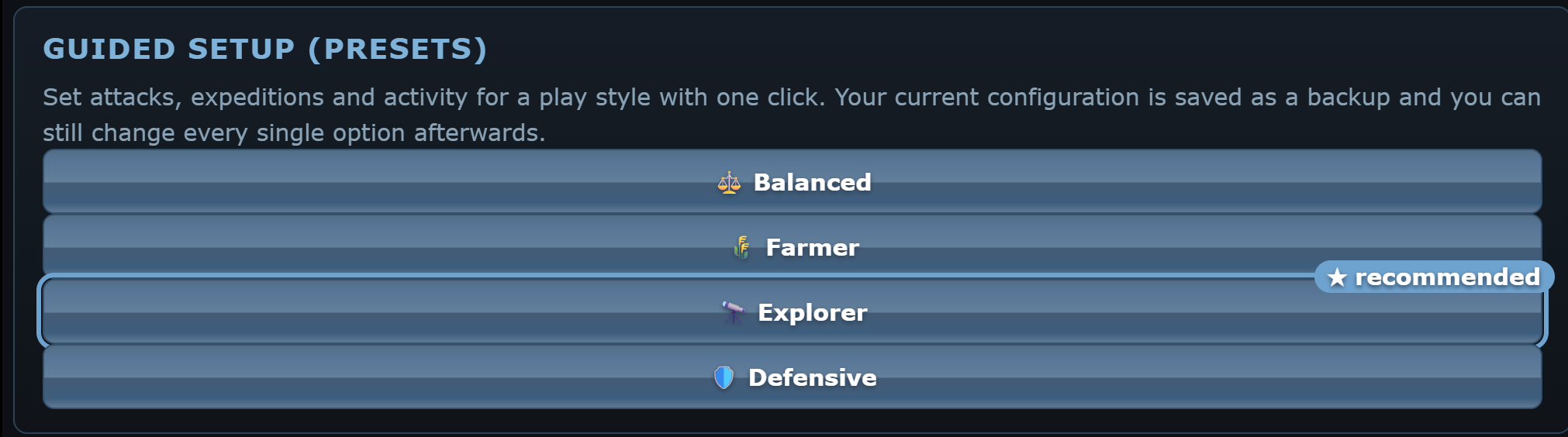
A preset sets attacks, expeditions and activity together for a play style:
- ⚖️ Balanced: moderate automatic attacks, expeditions and activity. The recommended starting point.
- 🌾 Farmer: attacks inactive players automatically and sends expeditions, with careful thresholds.
- 🔭 Explorer: as many expeditions as possible, no attacks, activity based on expeditions.
- 🛡️ Defensive: anti-missiles, missions paused under attack, message reading for alarms. No automatic attacks.
The preset marked ★ recommended is chosen from your class and account age: Explorer for the Discoverer, Farmer for General and Collector, Balanced for a brand-new account.
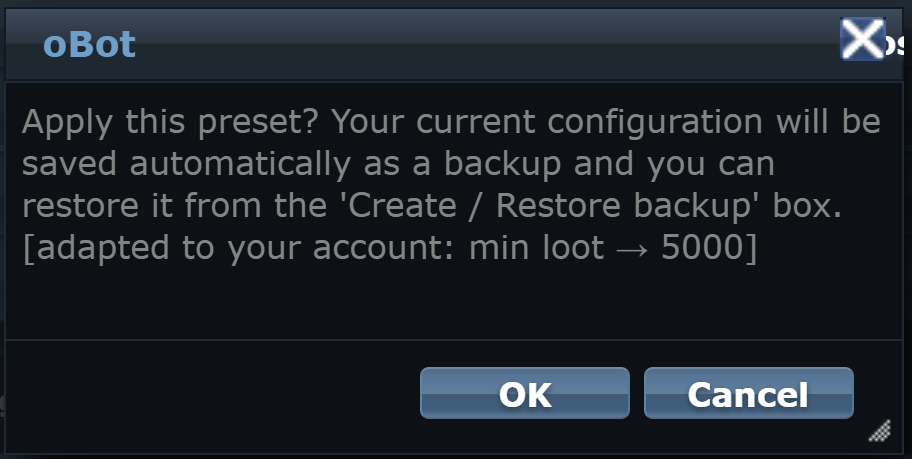
Before applying it the bot asks for confirmation and shows what it adapted to your account: the minimum loot threshold grows with the universe speed, expeditions never exceed your Astrophysics slots and on a new account the attack waves stay careful. With OK the bot saves the current configuration as a backup and applies the preset. Afterwards you can change every single option in the menus.
Backup and reset
- Create backup configuration saves a copy of the current configuration on the server.
- Restore backup, followed by the date, puts the saved configuration back. Applying a preset also creates a backup.
- Reset configuration puts every option back to its initial value. Make a backup first if you may want to go back.
General settings
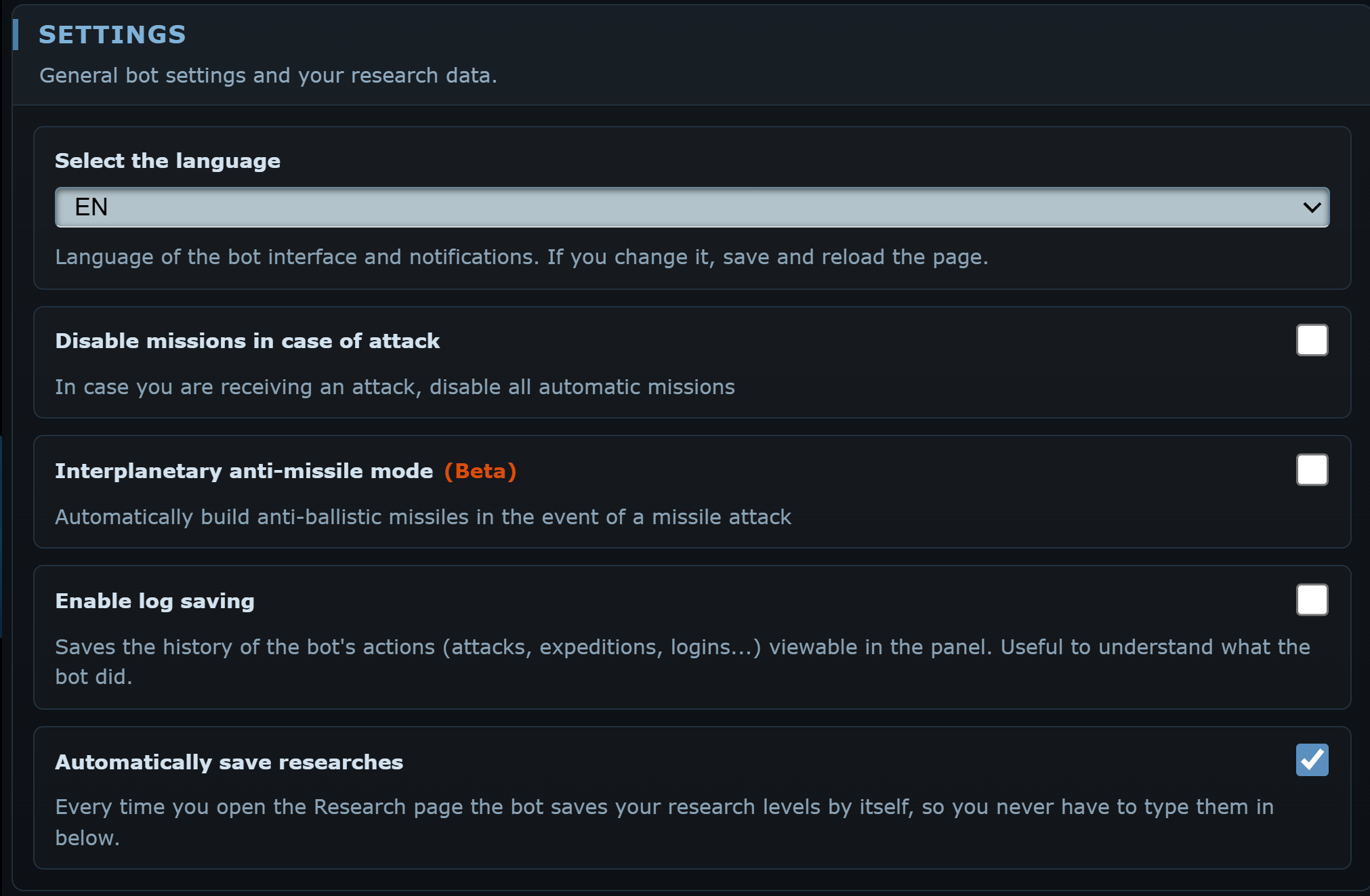
Select the language
Language of the panel and of the notifications. On first start the bot uses the language of the game server. After changing it, save and reload the page.
Update notice
With Telegram linked, tells you when the bot updates to a new version.
Disable missions in case of attack
If you are being attacked, the bot pauses the automatic missions. The automatic fleetsave still leaves, because that is exactly what you need under attack. Recommended always on.
Interplanetary anti-missile mode (beta)
When interplanetary missiles are fired at you, the bot queues anti-ballistic missiles on the target planet by itself, if the missile silo has room.
Enable log saving
Saves the history of the bot actions (attacks, expeditions, logins and so on) and shows it in the Log tab of the dashboard. Useful to understand what the bot did.
Research
Automatically save researches
On by default. Every time you open the OGame Research page the bot saves your Astrophysics, drive and Hyperspace Technology levels by itself. With this option on the manual fields stay hidden: just open the Research page after each completed research.
Hyper Technology, Astrophysics, drives
They appear only if you turn automatic saving off. They are used to work out cargo space, flight times and the maximum number of expeditions. Left at 0 the maths is wrong and the panel shows a red warning.
Check message reading

Start message reading functionality
The bot opens and reads incoming messages to detect attacks, espionage and notifications. It is needed for automatic alerts and to record the results of attacks and expeditions.
Number of minimum messages for reading
How many unread messages there must be before the bot opens the inbox. A higher value means fewer visits to the messages page.
Check if they send you interplanetary missiles
Also reads missile attack reports, needed by the anti-missile mode.
Commander functions
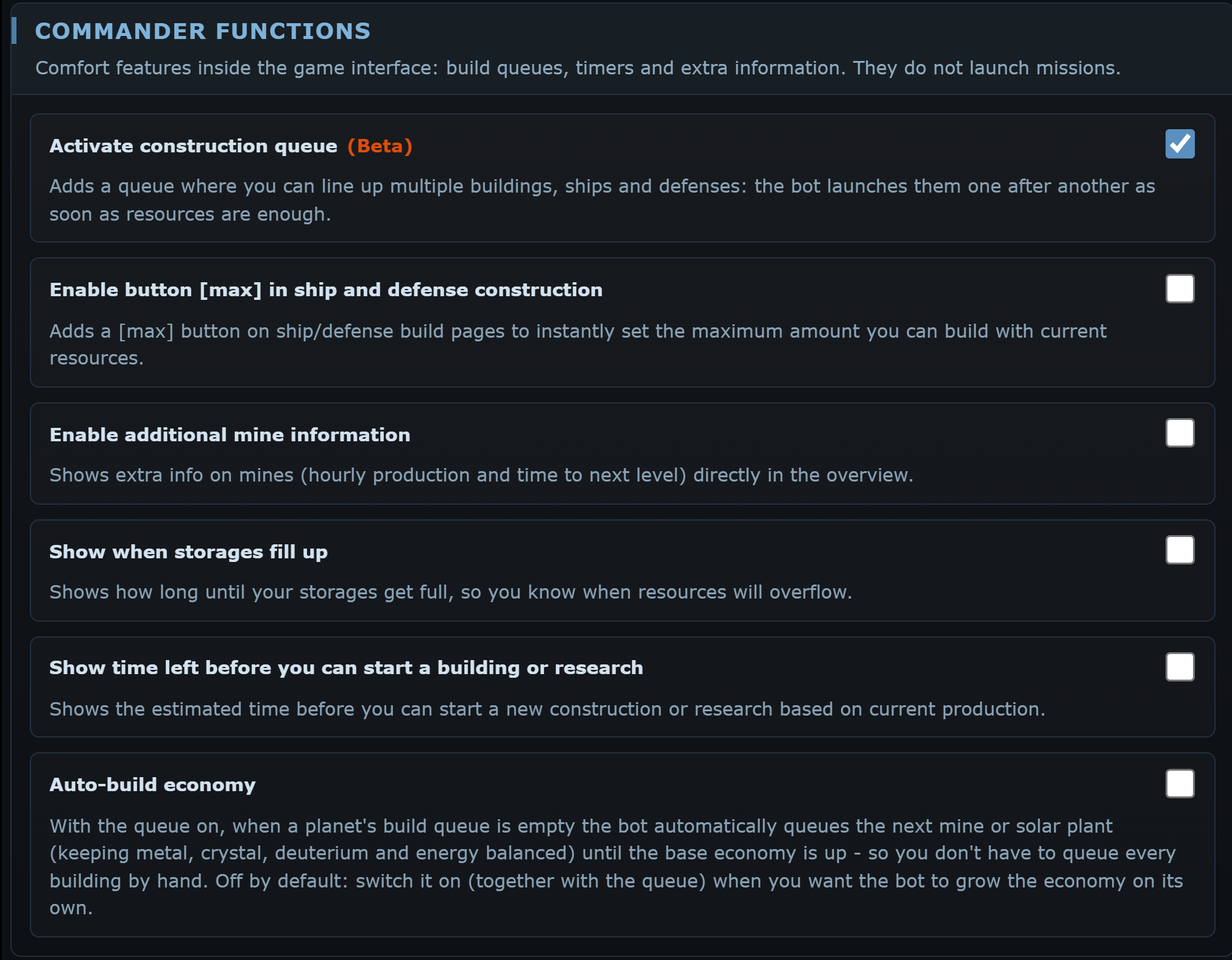
Conveniences inside the game pages. They do not launch missions.
Activate construction queue (beta)
Adds a queue for buildings, research, ships, defences and Lifeform buildings and research, moons included. The bot starts them one after another as soon as resources are enough, using the real costs read from the game.
Enable button [max]
On the shipyard and defence pages, adds a button that fills in the maximum amount you can build with the resources available.
Enable additional mine information
Shows the hourly production and the time to the next level on the mines.
Show when storages fill up
Tells you how long until your storages are full.
Show time left before you can start a building or research
Shows how long, at the current production, before you can start a building. It does not appear if you have the OGame Commander, which already does it.
Auto-build economy
With the queue on, when a planet's build queue is empty the bot queues the next mine or solar plant by itself, keeping metal, crystal, deuterium and energy balanced. It stops once the base economy is up. Off by default: turn it on yourself together with the queue.
Remember to save
Here too the options only apply after you press Change settings at the bottom of the menu. Presets, on the other hand, save straight away after the confirmation.