 OGame
OGameThe script adds a menu entry, a quick action bar and a control panel to the OGame interface, plus a few conveniences in the game pages.
Menu entries
Two new entries appear in the left menu:
- oBot opens and closes the control panel:
- Charts opens the attack and expedition charts (see the Charts section):

Quick action bar
A row of buttons appears under the OGame logo on every game page. Hover over a button to read its name.

- Activate / Disable the bot: pauses or resumes the bot and reloads the page. Since 9.3.8 the pause applies to all tabs and lasts until you resume it: no automatic page changes and no background actions (resupplies, ship rebuilding, anomalies), so you can play by hand. While the bot is paused the other buttons are greyed out.
- Stop all actions: clears the missions the bot has in progress (attacks, expeditions, transports, fleetsave). To stop the bot straight away during an attack, press this first and then the pause button.
- Start expeditions: sends the expeditions right away with the options of the Expedition menu.
- Optimized attacks: spies and attacks the coordinates of the optimised attack list (Attacks menu, Lists).
- Find inactive targets: starts a round of espionage and attacks in the zone set in the Attacks menu.
Control panel
Clicking the oBot entry opens the control panel. At the top you see the bot version and the premium expiry; the X closes the panel.
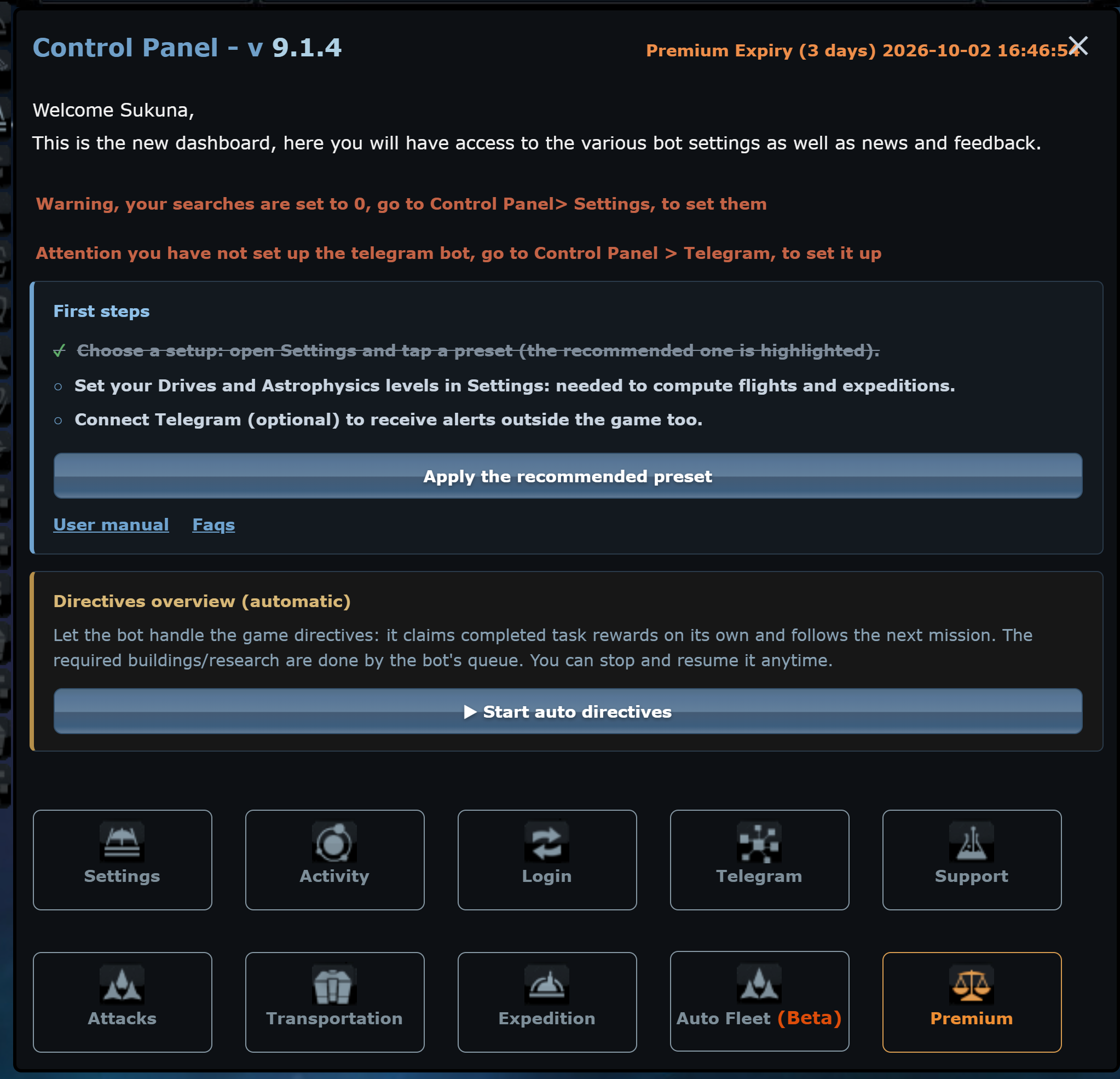
- Red warnings: remind you what is missing, for example research at zero or Telegram not linked.
- First steps: the to-do list to get going. It disappears by itself once at least one module is on and the bot knows your research.
- Directives overview: the button that makes the bot follow the game directives (see below).
- Log: if you enable log saving in Settings, the table of the bot actions appears under the menus; click the headers to sort it.
Panel menus

Each tile opens a menu. At the top of the menu there is the path (Control Panel > menu name) with a User manual link to the page that explains it; the X takes you back to the dashboard. Every menu has the same structure:
- Intro box: what the menu does, how to start, what to know before turning it on.
- Quick setup (Attacks and Expedition): ready-made profiles that fill in the options. They do not save by themselves: check the values, then save.
- Boxed sections with an explanation at the top, and a line under every option saying what it does.
- Change settings at the bottom: saves the menu. Without it, changes do not apply.
Premium menus
Automatic directives

The Start auto directives button makes the bot follow the game directives: it claims the rewards of completed tasks by itself and moves on to the next mission. The buildings and research they require are done by the bot queue (Settings, Commander functions). You can stop and resume it at any time.
Galaxy and messages
- Coloured rows: in the galaxy, rows are coloured by player status: inactive, on vacation, strong players, newbies.
- Keyboard: in the galaxy Q and E move to the previous and next system, A and D to the previous and next galaxy.
- Planets and moons: in a player tooltip, the "Planets and moons" entry lists all their coordinates, clickable.
- Espionage reports: in the messages, reports get a compact table with coordinates, age, player, loot, fleet and defences. Opening a row shows the resources, the loot of the next attacks and how many ships you need. The re-spy button starts from a planet or moon that actually has probes.
- Favourites: an attack or espionage report marked as favourite is neither processed nor deleted by the bot.
Video (previous version)
The video was recorded on a previous version: the look of the panel has changed.