 OGame
OGameWhat oBot is
oBot is an automatic assistant for OGame. It runs inside the game tab, through the Tampermonkey extension, and carries out expeditions, attacks on inactive players, transports and fleetsaves for you, following the options you set. It also adds conveniences to the game interface, such as a build queue and Telegram alerts.
Set up in 8 steps
- Install Tampermonkey and oBot. Install the Tampermonkey extension in Chrome or Firefox, then open the bot download link and press Install. The details are in the Installation section.
- Enter your universe. The OGame left menu gets two new entries, oBot and Charts, and a quick action bar appears under the game logo. A new account starts with a 3-day premium trial: every module is active.
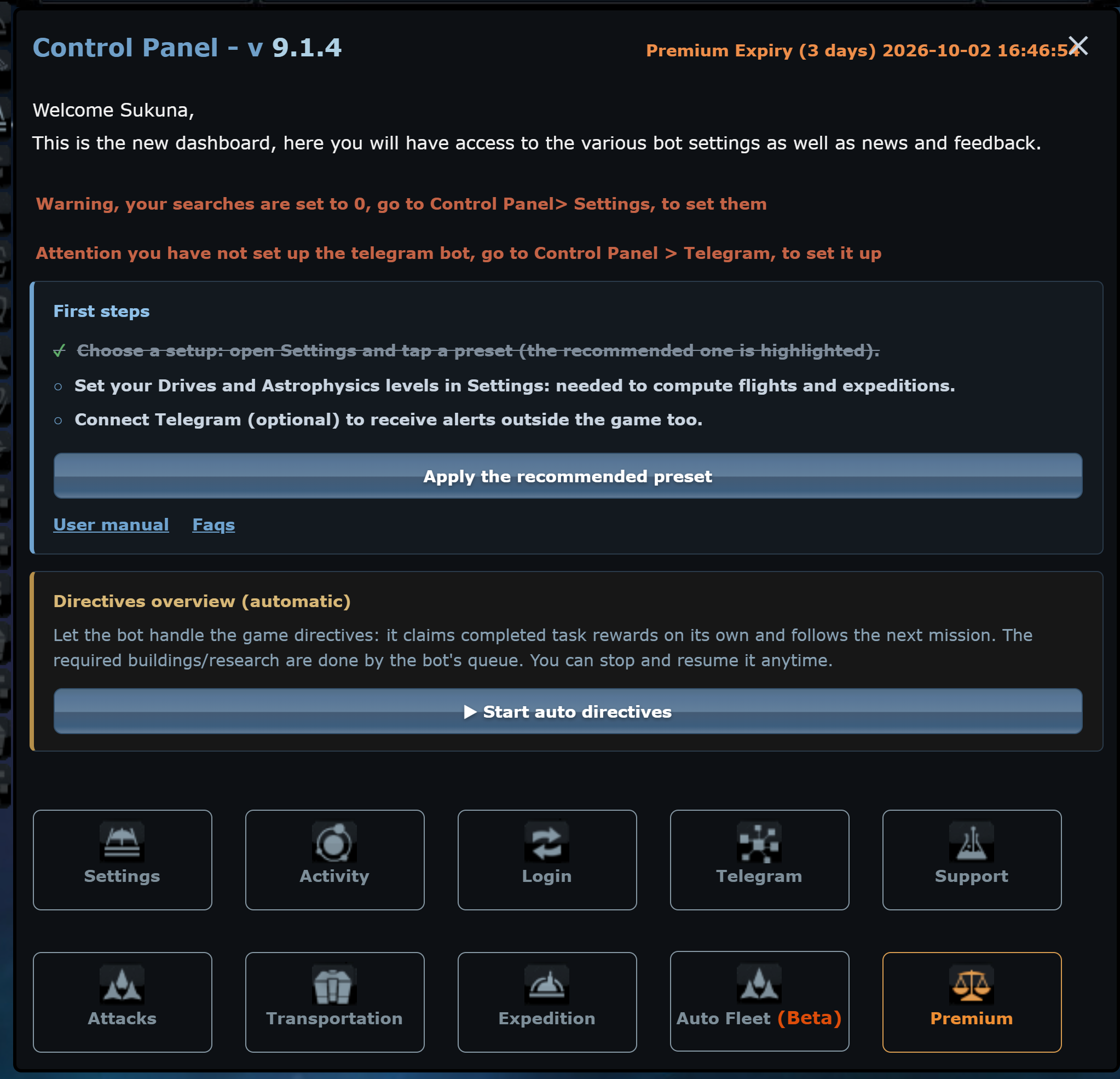
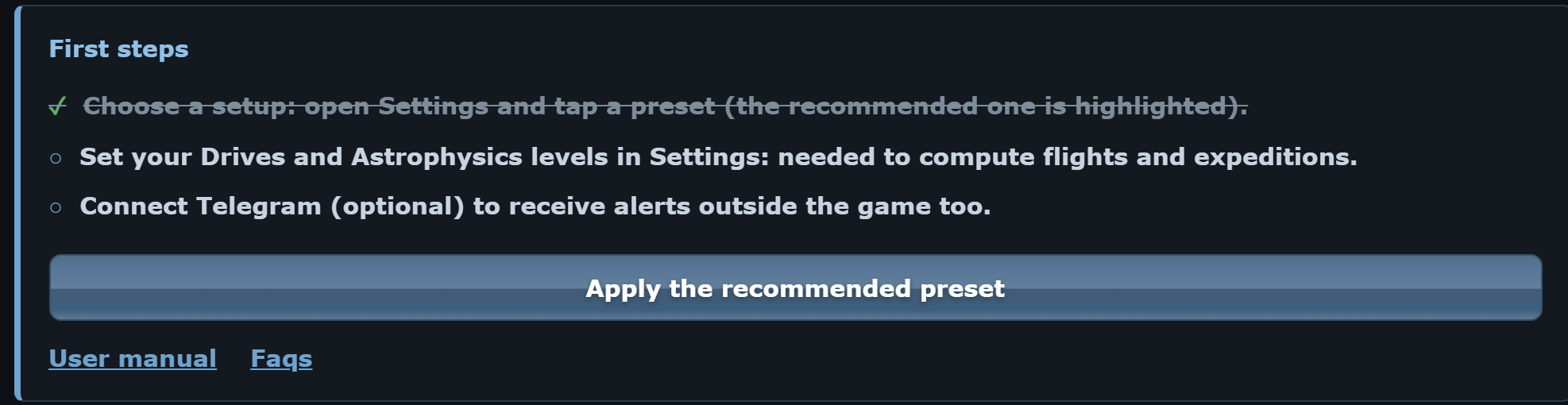
- Open the oBot panel from the left menu. At the top you find the First steps box with what is still to do:
- Apply the recommended preset. Press Apply the recommended preset, or open Settings and pick a profile: the bot sets attacks, expeditions and activity together, adapting the numbers to your universe and account. Your previous configuration is saved as a backup.
- Let the bot read your research. Open the OGame Research page once: the bot reads Astrophysics, drives and Hyperspace Technology by itself. It needs them to work out flights, cargo space and the number of expeditions.
- Link Telegram (optional but recommended) to get attack alerts away from the PC: see the Telegram section.
- Check the menus you will use (Expedition, Attacks, Transportation, Activity): every menu explains at the top what it does, has a Quick setup, and every option has a line saying what it does. After each change press Change settings at the bottom of the menu.
- Make sure the bot is on. The first button of the quick action bar turns the bot on and off: hover over it to read its state.

Saving is always explicit
No option takes effect until you press Change settings at the bottom of the menu. If you close the panel first, the change is lost. This is the most common cause of "I ticked the option but the bot ignores it".
How to tell it works
- With auto-activity on, the browser tab title shows the countdown to the next refresh.
- In the Expedition or Attacks menu press Show statistics: the total grows with every recorded mission.
- In Settings turn on Enable log saving: the dashboard gets a Log tab with everything the bot did.
- With Telegram linked, turn on the expedition notification to get a message at every departure.
How it works
- The bot lives inside the OGame tab: it works as long as the tab stays open and active.
- The configuration is stored on the oBot server, tied to your game account: you find it again on another PC or browser.
- Automatic missions wake up at every page refresh: that is why auto-activity is the "heartbeat" of the bot.
- Updates arrive by themselves through Tampermonkey; before running new code the bot checks its fingerprint.
For it to work
- the computer must be on and the browser open;
- the OGame tab must stay active and not minimised: browsers slow down background tabs and the bot stops;
- the bot handles one universe at a time.